

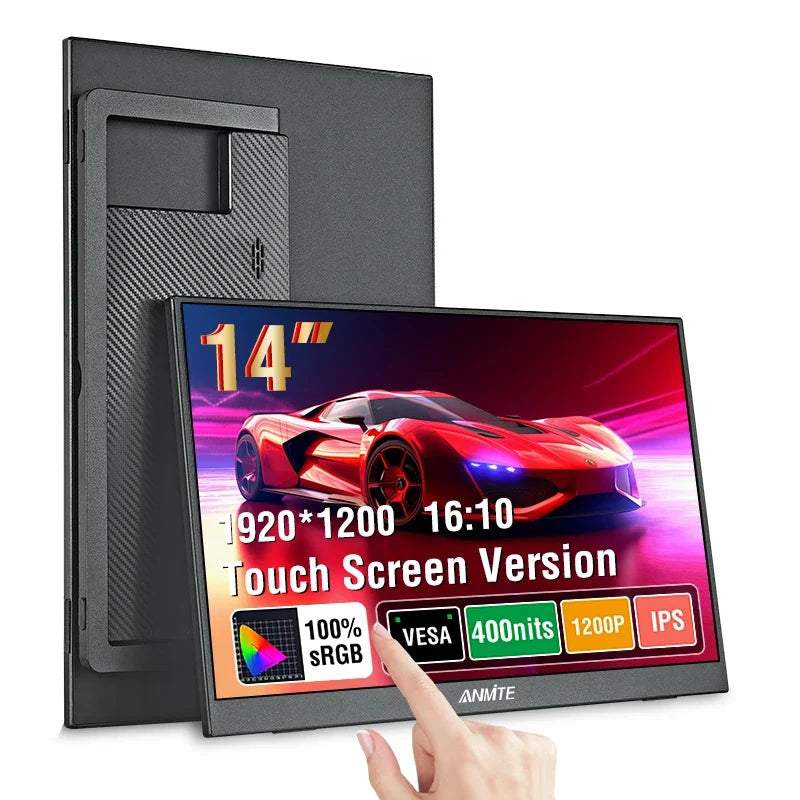
A portable monitor can turn a laptop into a more flexible two-screen workspace without committing to a full desktop setup. It can be useful for travel, study, remote work, presentations or simply adding more screen space to a small desk. The important part is choosing a display that actually fits your devices and the way you work.
This guide focuses on the practical checks that matter before you order: screen size, aspect ratio, ports, power, touch support and portability.
1. Start with your laptop, not the monitor
Before comparing portable displays, look at the video outputs on the laptop or device you plan to use. Modern portable monitors commonly connect through USB-C, HDMI or a combination of the two, but a USB-C port on a laptop does not automatically mean it can send video.
If you want a one-cable USB-C setup, confirm that the computer supports video output through that port, often described as DisplayPort Alt Mode or Thunderbolt. If your device uses HDMI for video, check whether the monitor also needs a separate power connection. The safest approach is to verify both the source device and the monitor specifications before ordering.
Quick rule: never choose a portable monitor based on connector shape alone. Check what the port actually supports.
2. Choose a screen size that remains portable
A larger screen gives you more working area, but it also takes more room in a backpack and on a hotel or café table. Around the 14-inch range is a useful middle ground for many laptop users because it can sit beside a compact notebook without becoming a second full-size desktop monitor.
Aspect ratio also changes how the display feels. A 16:10 screen provides slightly more vertical working space than a 16:9 display of similar width, which can be useful for documents, browser windows, spreadsheets and editing timelines.
The 14-Inch Portable IPS Monitor at Guanawear uses a 14-inch, 16:10 format and is offered in touch and non-touch versions. Port and device compatibility should still be confirmed for your intended setup.
View the 14-Inch Portable Monitor
3. Decide whether touch is actually useful to you
Touch support can be convenient for navigation, creative work or certain presentations, but it is not automatically the better choice for everyone. If the portable monitor will mainly hold email, reference material or a second browser window, a non-touch version can be perfectly practical.
If you do want touch, verify that your operating system, connection method and device support the required touch input. Video compatibility and touch compatibility are separate questions.
4. Plan for power as well as video
Portable does not always mean battery powered. Many portable displays draw power from a connected device or external power source. That makes cable planning important, especially when travelling.
Ask these questions before buying:
- Will one cable carry both video and enough power?
- Will the monitor require a second cable for power?
- Does your laptop need to stay connected to its own charger at the same time?
- Do your USB-C cables support the functions you expect from them?
If your desk already has several USB-C devices, a multi-port charger can help reduce adapter clutter. Our portable monitor setup guide goes deeper into USB-C, HDMI and cable planning.
5. Think about how the second screen will be positioned
A second screen is most useful when you can place it at a comfortable angle and height. On a permanent desk, you may prioritize a stable stand. For travel, you may care more about compact storage and fast setup.
Also consider whether you normally work side by side, use the second display vertically, or place it above the laptop. The best screen specifications will not compensate for an awkward physical setup.
6. Match the monitor to the job
Different users benefit from a portable screen in different ways:
- Remote work: keep a call on one screen and working documents on the other.
- Study: place research or a lecture beside notes and assignments.
- Travel: recreate part of a dual-monitor desk without transporting a desktop display.
- Presentations: use a second display when the source device and connection support the setup.
- General productivity: move chat, email or reference windows away from your main workspace.
7. Use a compatibility checklist before checkout
Before ordering any portable display, confirm:
- your laptop or device can output video to the monitor;
- the required ports and cables are available;
- you understand how the monitor will be powered;
- the screen size works for your bag and workspace;
- touch support, if selected, is compatible with your device;
- the plug or adapter arrangement works in the country where you will use it.
These checks take a few minutes and can prevent the most common disappointment with portable displays: buying a screen first and discovering later that the intended device cannot drive it the way you expected.
Portable monitor or full desktop monitor?
A full-size desktop monitor remains the better choice when maximum screen space, a fixed ergonomic setup or specialized display performance is the priority. A portable monitor wins when flexibility, storage and mobility matter more. Many people use both: a larger display at their main desk and a portable second screen when the workspace changes.
Ready to build a more flexible laptop setup?
Explore the 14-Inch Portable IPS Monitor, available in touch and non-touch versions, or browse more options in Tech & Electronics.
Next, read Portable Monitor Setup Guide: USB-C vs HDMI, Power and Cable Checklist before connecting your first second-screen setup.


