

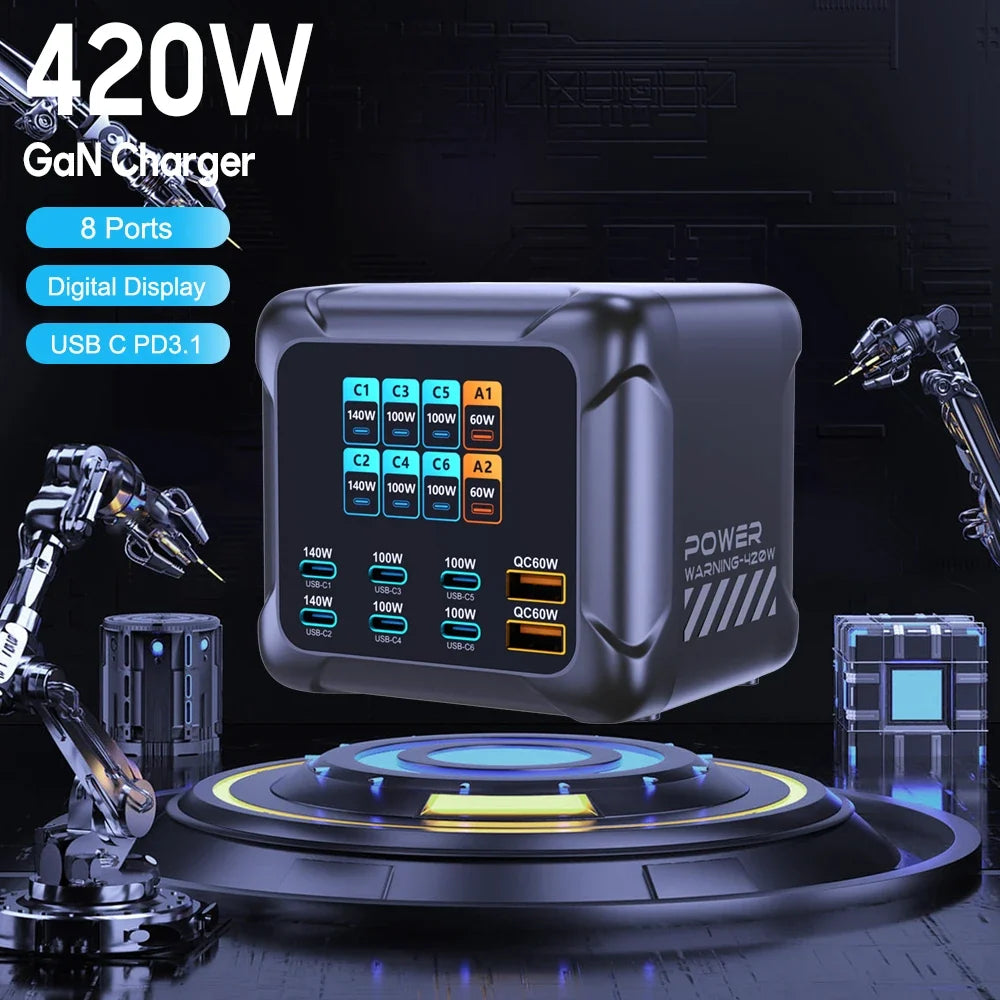
A charging area becomes messy when every new device adds another adapter, another long cable and another occupied wall outlet. The solution is not necessarily buying the charger with the highest advertised wattage. A cleaner setup starts by deciding which devices need to charge together and where those devices actually sit.
Step 1: make a device map
List the equipment that normally needs power at the same time. A work desk might include a laptop, phone, tablet, earbuds, smartwatch and portable monitor. A family charging area might include several phones plus smaller accessories.
Separate devices into three groups: high-priority devices that need regular charging, occasional devices and low-power accessories. This tells you how many ports you really need.
Step 2: reserve the right ports for the right devices
On a multi-port charger, ports may not all provide the same output. Reserve the ports with the appropriate capabilities for laptops or other higher-demand equipment, then use the remaining connections for smaller devices.
If you have not yet chosen a charger, read our GaN Charging Station Buying Guide before comparing total wattage and port count.
Step 3: shorten the cable path
Cable clutter often comes from using cables that are much longer than necessary. Place the charging station near the center of the devices it serves, then use cable lengths that allow comfortable movement without leaving large loops on the desk.
Keep in mind that cable capability matters as much as length. A USB-C cable that fits a port is not automatically rated for every charging level.
Step 4: centralize without creating a single point of confusion
A station with many ports can replace several adapters, but ten identical-looking cables can create a new problem. Simple labels, reusable cable ties or routing clips can make it clear which cable belongs to each device.
For a permanent desk, consider routing the charging leads behind the work surface while leaving only the useful length accessible. For travel, keep a small set of known-good cables together with the charger.
Step 5: plan for the portable monitor too
If you use a portable second screen, remember that it may need its own power connection even when video comes from HDMI. A USB-C video setup can also have specific power requirements. Our USB-C vs HDMI portable-monitor guide explains the difference.
Two Guanawear options for centralized charging
The 10-Port GaN USB-C Charging Station is supplier-listed with a 10-port layout and combined output up to 660W, depending on connected devices and port configuration. It comes in multiple plug variants.
The Ubigbuy 420W GaN Charging Station is another multi-device option with a digital display and supplier-listed USB-C PD/PPS support. Actual charging performance still depends on the devices, cables and ports in use.
Shop the 10-Port Charging Station
Desk charging checklist
- Count devices that charge simultaneously.
- Identify which devices need the most capable ports.
- Use cables rated for the required charging level.
- Select the correct regional plug.
- Keep frequently used cables accessible.
- Route excess cable away from the working area.
- Leave one or two spare ports if your device mix changes often.
A cleaner setup should also be easier to use
The point of centralizing charging is not simply to make a desk look better. It should make the routine more predictable: one place to connect devices, fewer adapters to pack and fewer outlets occupied.
Explore Tech & Electronics for chargers, portable displays and other accessories that can be combined into a more organized setup.


