

Portable monitors are simple once the connection path is clear. Most setup problems happen because video, power and touch data are different jobs, even when they appear to travel through similar-looking cables.
This guide explains the most common USB-C and HDMI portable-monitor setups so you can identify what your laptop needs before you connect or buy a second display.
USB-C setup: the cleanest option when the devices support it
A USB-C connector can carry several different functions, but not every USB-C port supports every function. Some ports are primarily for charging or data. Others can also carry video through technologies such as DisplayPort Alt Mode or Thunderbolt.
For a one-cable portable-monitor setup, the source device must be able to send video over USB-C and the connection must provide whatever power the display requires. The cable itself also needs to support the necessary functions.
If a laptop has a USB-C port but the monitor remains blank, do not immediately assume the monitor is defective. Check the computer specification for video output support first.
HDMI setup: video is clear, but power is separate
HDMI is designed to carry audio and video, not to serve as the main power source for a portable display. With an HDMI-based setup, it is common for the monitor to need another connection for power.
This can still be a very practical arrangement, especially for laptops, consoles or other devices with a dedicated HDMI output. It simply means you should plan for an additional cable and an available power source.
Do not confuse connector shape with capability
Two USB-C ports can look identical and behave very differently. The same applies to cables. A cable that successfully charges a phone might not carry display video, and a cable suitable for data might not deliver the power expected by another device.
Before troubleshooting, identify four things:
- Which port on the laptop sends video?
- Which input on the monitor accepts that signal?
- Where will the monitor get power?
- Does the cable support the required video/data/power function?
A simple connection decision tree
If your laptop supports video over USB-C: start by checking whether the monitor supports the corresponding USB-C video connection and whether the same cable can also handle its power needs.
If your laptop does not support USB-C video but has HDMI: use the appropriate HDMI connection for video and plan a separate power connection for the monitor if required.
If you want touch functionality: remember that showing an image and sending touch input are separate functions. Confirm the touch requirements for the monitor and the operating system before relying on touch as part of your workflow.
Power planning matters more on a travel desk
A portable monitor can reduce the amount of hardware you carry, but a poorly planned power setup can replace one bulky screen with several adapters. Count the devices that need power at the same time: laptop, phone, monitor, earbuds, tablet or other accessories.
A multi-port charging station can help centralize those connections. When comparing one, pay attention to total rated output, how power is distributed across ports, plug type and the capabilities of your cables. Our GaN charging station buying guide explains those points in detail.
Portable-monitor checklist before leaving home
- Test the monitor with the exact laptop you will travel with.
- Pack the video cable that you know works.
- Pack any separate power cable or adapter the display needs.
- If using HDMI, verify you have the correct connector format or adapter.
- If using USB-C, verify the laptop port supports display output.
- Test touch functionality separately if it is important to your workflow.
- Keep a charging port available for the laptop itself.
Where a 14-inch display fits
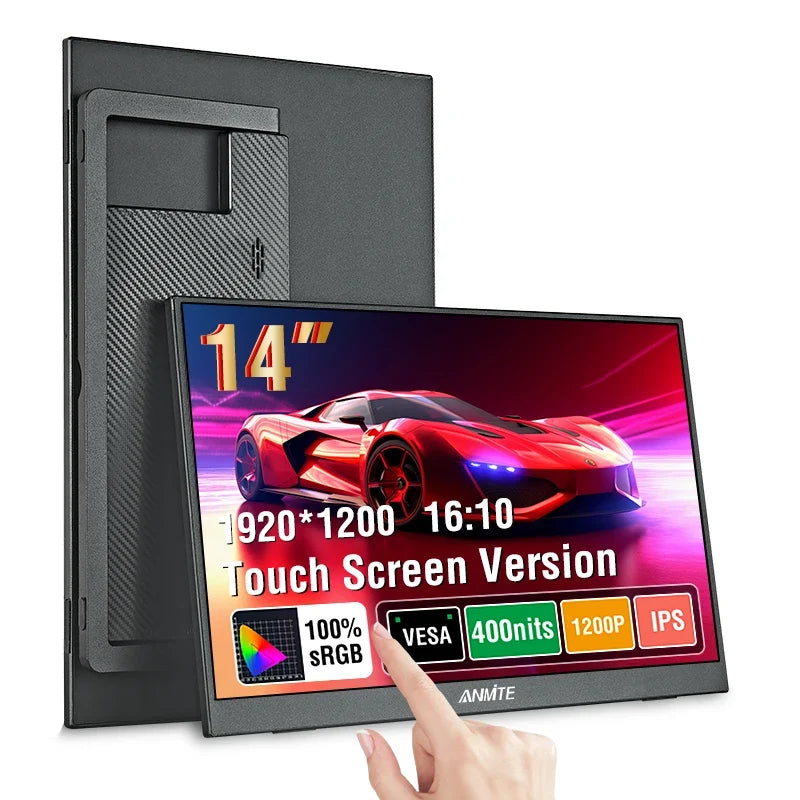
The Guanawear 14-Inch Portable IPS Monitor uses a 16:10 format and is available in touch and non-touch variants. Because connection requirements vary between source devices, check your laptop's ports and power capabilities before ordering.
Check the Portable Monitor Options
USB-C or HDMI: which should you prefer?
Choose based on compatibility, not on which connector sounds newer. A verified one-cable USB-C setup is convenient and clean. HDMI can be equally dependable when your device has a suitable output and you are comfortable providing power separately.
The best setup is the one you have tested with your actual equipment.
Still choosing your screen?
Read our companion guide, How to Choose a Portable Monitor for Your Laptop, then explore Tech & Electronics for related desk and travel gear.


